
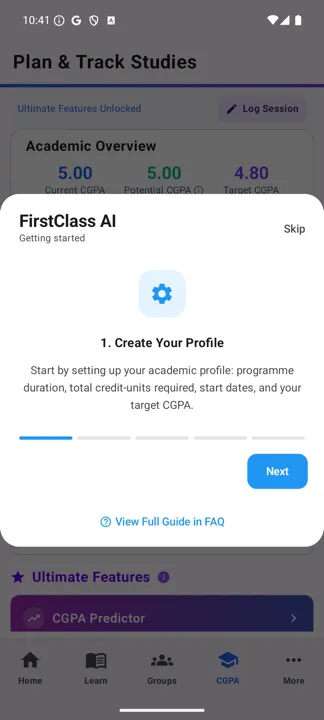
1. First run — telling it who you are
The first time you open CGPA, it asks what stage you're at. The answer changes what the tab shows you, so it's worth getting right — an undergraduate gets CGPA tracking and a graduation forecast, while a fresh graduate gets career-facing tools instead.
2. The Academic Overview
The top of the tab answers one question: where are you, and where are you trying to get to.
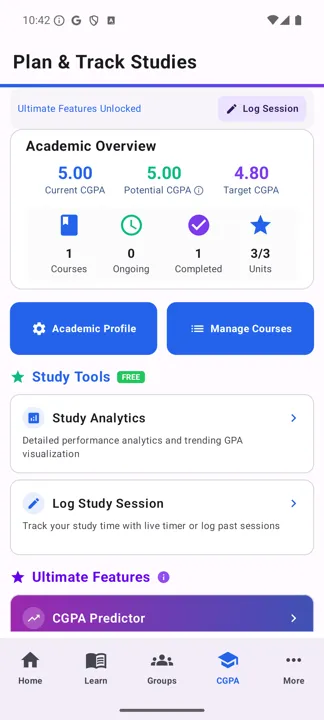
- Current CGPA — what your completed courses actually add up to.
- Potential CGPA — where you'd land if your ongoing courses go as well as they currently look.
- Target CGPA — the figure you set yourself. Everything else is measured against it.
Below that: how many courses you're tracking, how many are ongoing, how many are done, and your credit units earned against the total your programme requires.
3. Courses and grades
Manage Courses is where the numbers come from. Add each course with its code, title and credit units, then record the grade when it's done.
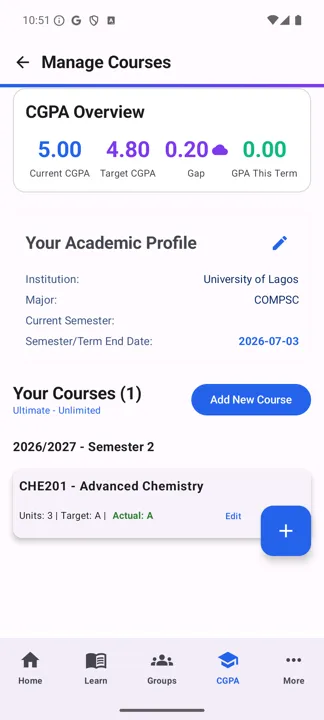
Academic Profile, next to it on the home screen, is where you set the frame: programme length, total credit units required, start date and your target CGPA. Set this before adding courses and the tracker can tell you whether you're on schedule as well as on grade.
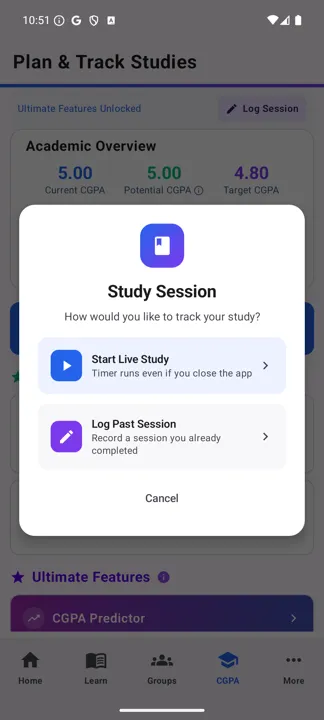
4. Logging study time
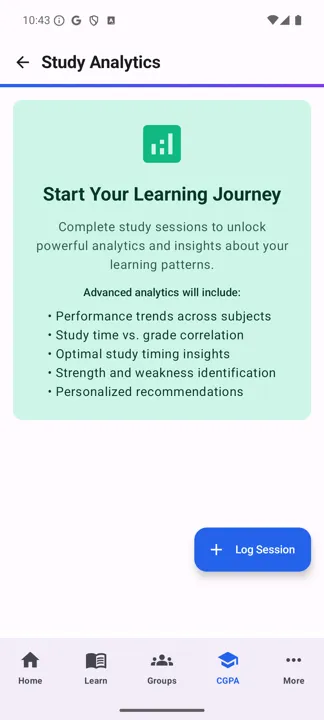
Grades tell you the outcome. Study sessions tell you the effort — and the analytics have nothing to work with until you record some.
5. CGPA Predictor
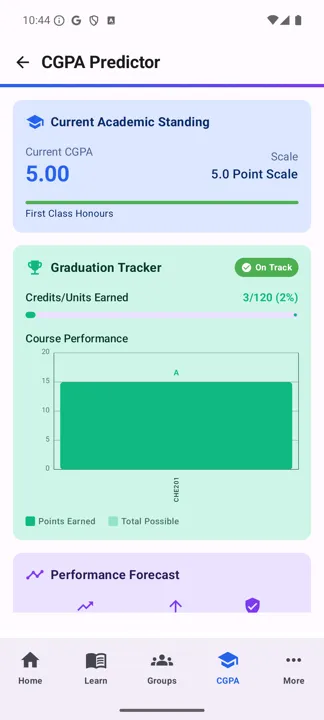
The forecasting tool. It takes your current standing and works forwards: whether you're on track for the degree class you want, and what each remaining course does to the total.
6. Scheduler, analytics and Holiday Advisor
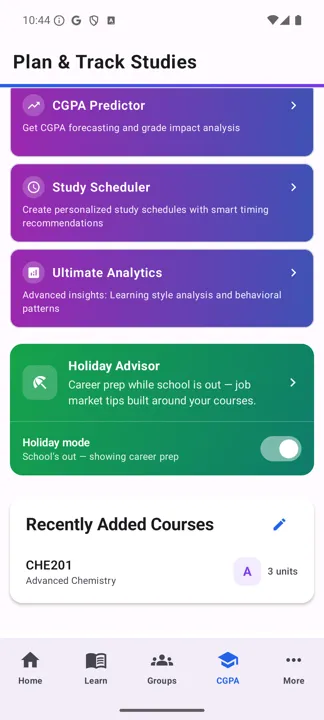
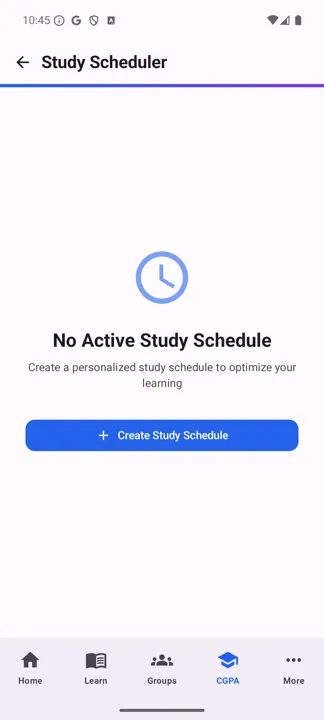
- Study Scheduler — builds a personalised timetable around your courses.
- Ultimate Analytics — learning-style analysis and behavioural patterns, once there are enough sessions to read.
- Holiday Advisor — switch Holiday mode on when term ends and the tab turns to career preparation and job-market tips built around the courses you've taken.
Aim first class from day one
Pair the CGPA tools with extra practice on your first-year foundation courses.
Screens captured on Android with an undergraduate profile. Your figures, courses and available tools will differ.