🎉 O-Levels are free until Dec 31, 2026, University Year 1 is free in beta, and Graduate Trainee is free forever!

User Guide

How to study with Tenkobo

A walkthrough of Learn — Study & Practice — using Use of English and Mathematics as the worked examples, screen by screen.

1. Finding your subject

Open Learn from the bottom bar. Everything you study lives here, grouped by the kind of exam it belongs to — O-Level, Medical Sciences, Graduate Trainee, PMP and more.
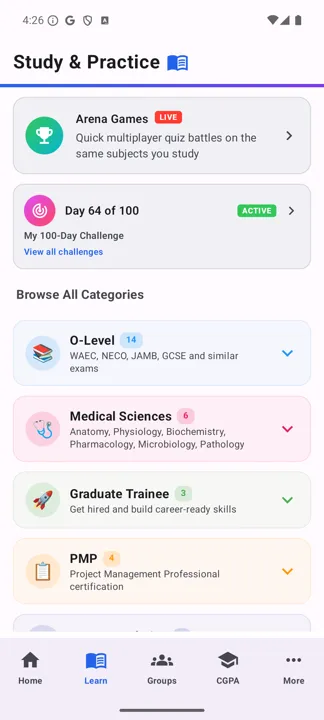
Study & Practice home showing an active challenge and subject categories
Study & Practice. Anything already running sits at the top so you can carry on without hunting for it.
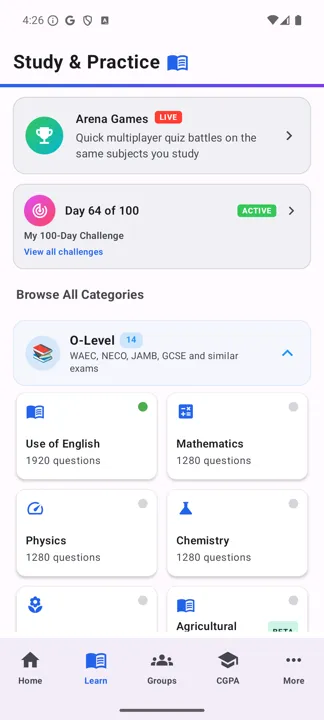
O-Level category expanded, showing Use of English and Mathematics
Tap a category to open it. We'll use Use of English and Mathematics throughout this guide.

2. The ways to study

Every subject opens on the same study modes, ordered deliberately — read, remember, test, rehearse, explore — but you can start anywhere.
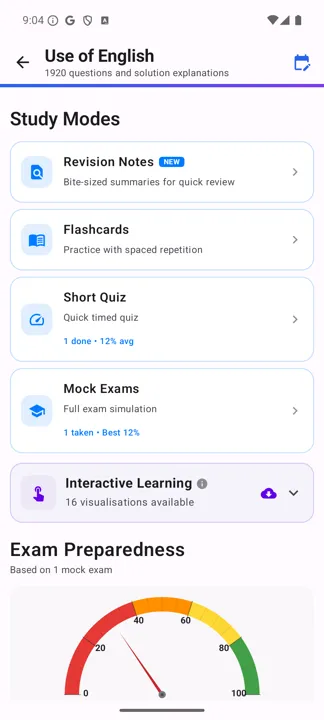
Use of English subject home with study modes
Use of English — questions with worked solutions.
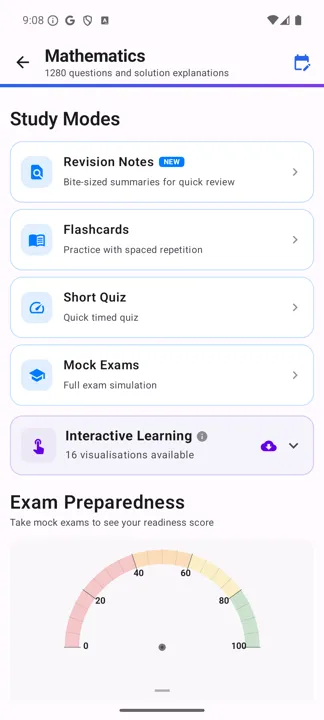
Mathematics subject home with the Exam Preparedness gauge
Mathematics. Scroll past the modes for Exam Preparedness, a readiness score that fills in once you've taken mock exams.
The counters are yours, not ours. A subject you've never touched shows nothing at all — so the subject home doubles as a record of where you left off.

3. Revision Notes — read first

Short written summaries of each topic, with a reading time on every one so you can pick something that fits the time you actually have.
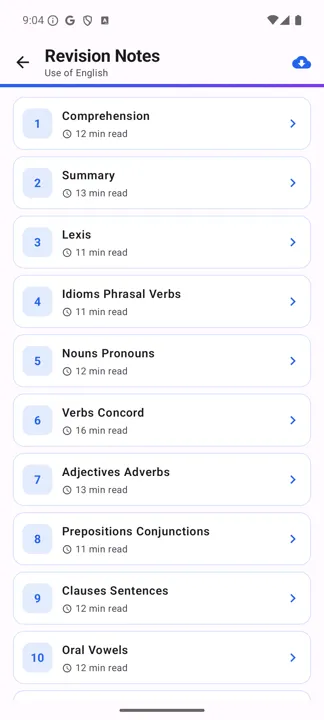
Revision Notes list for Use of English
Topics run in teaching order, not alphabetically. Nothing here is longer than about a quarter of an hour.
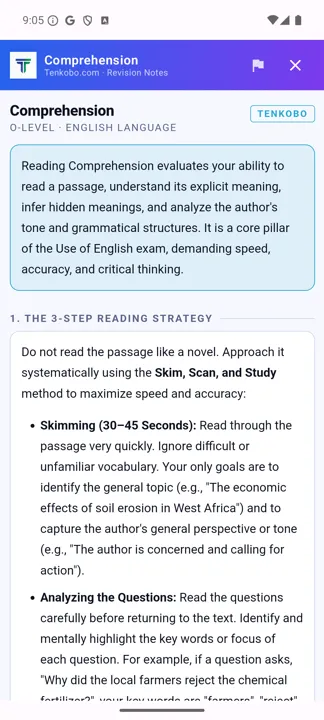
The Comprehension revision note, showing the 3-step reading strategy
Notes teach method, not just facts — the Comprehension note opens with a 3-step reading strategy.
Read it offline. The download arrow at the top right of the notes list saves the whole set to your phone — useful before a journey, or anywhere data is expensive.

4. Flashcards — remember it

Flashcards use spaced repetition: after each card you say how easy it felt, and the app decides when to show it to you again. Cards you find hard come back sooner; ones you know cold drift weeks into the future. After each answer you'll see four buttons:

  • Lost — you'd forgotten it. The card returns later in the same session.
  • Hard — you got there, slowly. It comes back sooner than normal.
  • Average — normal spacing.
  • Easy — you knew it instantly. It won't be shown again for a long time.
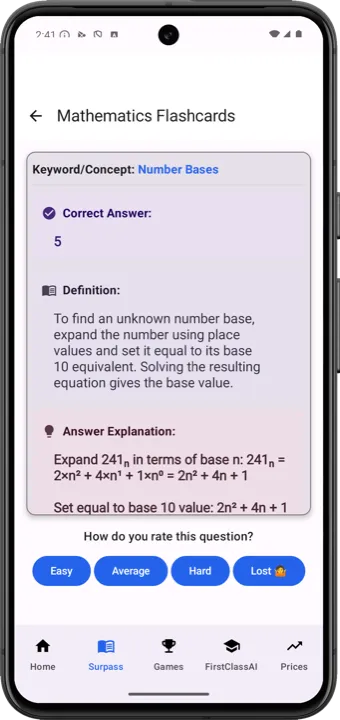
A Tenkobo Mathematics flashcard with the answer and rating buttons
A flashcard with its answer revealed and the rating buttons beneath it.
Rate honestly. Marking everything Easy feels productive and quietly stops the app scheduling the cards you actually need. The spacing is only as good as the ratings you give it.

5. Short Quiz — test it

A quick timed run to check whether the reading stuck. You choose a topic first, or take All Topics (Random) for a mixed set. If a topic has fewer than ten questions, the quiz tops it up with random ones so the length is consistent.
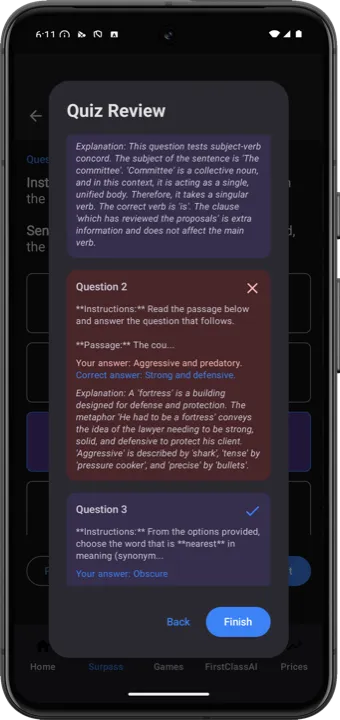
Short Quiz review screen with a worked answer explanation
Every question is reviewed afterwards with a worked explanation, not just a right/wrong mark.

6. Mock Exams — rehearse it

A full timed simulation at exam length. This is the one that feeds the Exam Preparedness gauge on the subject home, and — if you're running Project 320 — your projected UTME score.
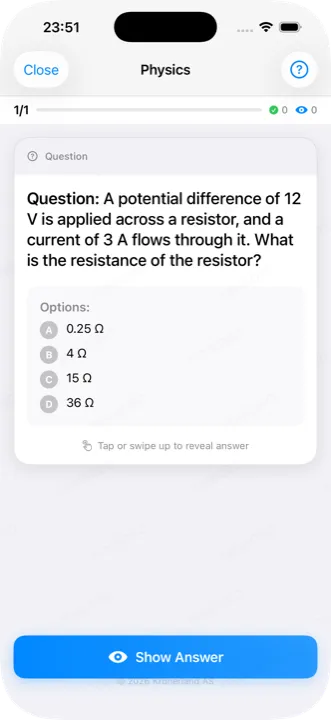
Case studies come first. In mocks that include case studies, the case material is presented before the standalone questions rather than after, so you read the scenario while you're fresh.
A mock exam interface under timed conditions
A mock exam under timed conditions — the same format you'll face on exam day.

7. Interactive Learning — play with it

Visualisations you manipulate rather than read. Each subject has around sixteen. They're the best tool for the topics where a static explanation never quite lands.
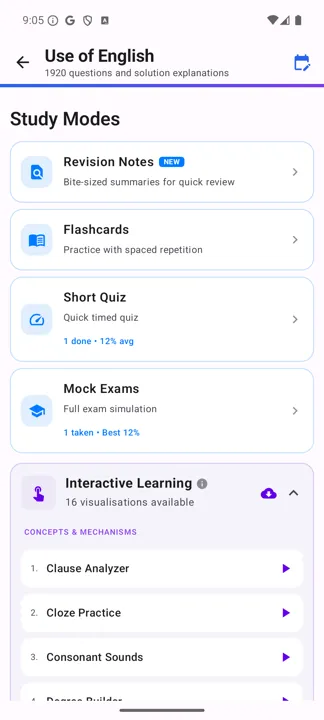
Interactive Learning list on Use of English
Tap Interactive Learning to unfold the list. The cloud icon downloads them for offline use.
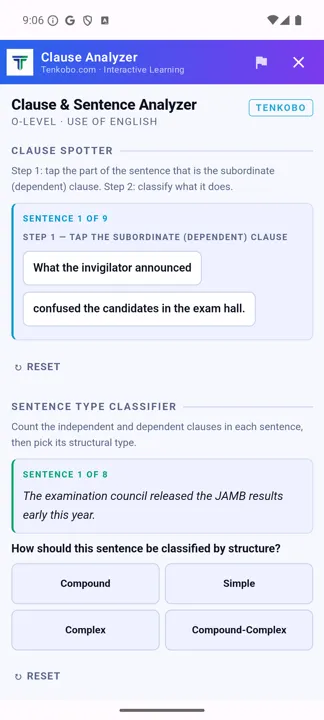
The Clause & Sentence Analyzer widget
Use of English — Clause Analyzer. Tap the subordinate clause in a real sentence, then classify the sentence type.
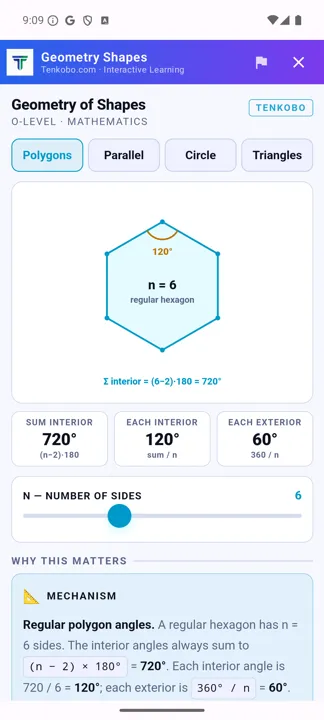
Geometry of Shapes widget with a slider for the number of sides
Mathematics — Geometry of Shapes. Drag the slider and the polygon redraws; the formulas update with the shape, so the relationship between (n−2)×180 and what you're looking at is visible rather than memorised.

Ready for a full plan?

Project 320 turns these modes into a structured 230-day run at UTME.

Project 320 guide →

Screens captured on Android (Use of English & Mathematics, O-Level). Your own numbers, subjects and available visualisations will differ.

×